The Forest
every component, one essay
This essay demonstrates everything from Seedling and Sapling, plus background image switching, sticky backgrounds, side-scroll sections, juxtapose comparisons, and the full header system. This is the complete cinematic experience.
Notice the header above: it includes an eyebrow (“ScrollStory Demo”), a divider (the decorative line of symbols), and a subtitle below the title. These hero-only fields are set in the front matter:
header-eyebrow: ScrollStory Demo
header-divider: ✦ ✦ ✦
header-subtitle: every component, one essay
Auto-scroll: demo mode
This essay also has autoscroll: true in the page header–you may have noticed a little popup in the lower right of your screen–which enables a hands-free scrolling mode useful for demos and recordings. Anywhere on the page, press P to start auto-scrolling; press P again to pause. Scrolling manually, pressing Escape, or using arrow keys also pauses it.
Auto-scroll is off by default on all pages. To enable it, add autoscroll: true to a page’s metadat. Remove the line (or set it to false) to disable it.
All the Basics Still Work

Ferns on the forest floor. Simple figure-wrap, right-aligned at 48%.
Forest doesn’t replace Seedling or Sapling—it includes them. You can mix simple images, footnotes, and section headings with the advanced features we’re about to show you.
The key to Forest essays is knowing when to use which tool. Not every moment needs a cinematic treatment. Sometimes a simple image alongside text is exactly right.
Juxtapose: Before/After Comparisons
Below you’ll see a juxtapose component—an interactive slider that lets readers compare two images by dragging a handle left and right.


Drag the slider to compare two forest scenes — mist vs. dappled light. The starting position is set to 35% so readers see more of the second image initially.
Why use juxtapose? When you want readers to actively explore the relationship between two images. The interactive slider invites engagement—readers control what they see.
Use cases: Historical photos showing change over time, different views of the same location, comparing maps or documents, revealing differences that might be subtle.
The starting-position="35%" shifts the slider so readers don’t start at the default 50/50 split.
Sticky Background
The sticky background is similar to a scrollybox but uses CSS position: sticky instead of background-attachment: fixed. The visual effect is subtly different — the image scrolls with you until it reaches the top of the viewport, then sticks while content continues past it.
Sticky background with right-aligned text box.
This component works like the scrollybox from Sapling, but uses a different CSS technique. The image feels more grounded — it moves with the page before locking into place.
Use bg-sticky when:
- You want the image to arrive with the scroll rather than being revealed behind content
- You need more reliable behavior on mobile devices
- The sticky “lock-in” moment adds to your narrative
Center-Aligned Pull Quote
The pull quote above uses box-align=\"center\" and width=\"70%\" — wider and more prominent than the left- or right-aligned versions you saw in Seedling and Sapling. Reserve center-aligned quotes for your most important ideas.
Jumbotron With Right-Aligned Text
Autumn Canopy
A jumbotron with box-align="right" — the gradient fades from right to left, keeping the text readable against the image.
Sapling demonstrated a left-aligned jumbotron. Here we use the right side to show how box-align controls both text placement and gradient direction.
Blockquote Include
In Seedling, you saw Markdown’s > syntax for block quotes. Xanthan also has a blockquote include that gives you alignment control:
The forest floor receives only 2% of the sunlight that hits the canopy. What grows there has adapted to work with almost nothing — and yet the understory is where most of the forest’s biodiversity lives.
The box-align parameter accepts left, right, or center (default). This left-aligned version creates a different visual texture from standard centered block quotes.
Standard Scrollybox (From Sapling)
The next section uses a basic scrollybox like you saw in Sapling. Keep scrolling to see text overlay a full-screen background image.
Looking up through the canopy — this scrollybox is right-aligned, using box-align: right.
All the same Markdown works here — and this is the same component you saw in Sapling. Forest essays use it freely alongside advanced features.
Use above-box-space and below-box-space to control pacing — more space means slower, more contemplative scrolling.
Background Switching: Multiple Images
This is what makes Forest essays truly cinematic. You’re about to scroll through a section where the background image switches multiple times as you read, creating a visual sequence that matches your narrative.
Watch carefully: The background starts with one image, then switches to a second, then a third. The text box stays visible throughout.
The first image — a foggy forest scene. This multi-section scrollybox opens with bg-multi-long.html, which sets the initial background. Content between here and the bg-multi-long-close.html tag appears in a text box that scrolls over the changing backgrounds.
Lorem ipsum dolor sit amet, consectetur adipiscing elit. Phasellus nec ante ligula. Nulla fringilla ligula sit amet nisl consectetur ultricies. Mauris ac tellus eu ante lobortis rhoncus non eu nisl.
SWITCH: Moss and Bark
The background just switched to moss on a log. Each bg-switch tag triggers a new background image when the reader scrolls past it. You can chain as many switches as your narrative needs.
Duis ut dui dolor. Integer eu lectus at tellus accumsan euismod eget a ligula. Morbi venenatis, elit eu varius fermentum, ligula est dictum massa, sit amet ullamcorper augue nisl ut nunc.
SWITCH: Looking Up
Now the canopy — three layers of the forest shown through three background switches. This technique works for:
- Spatial narratives (moving through a building, landscape, or archive)
- Temporal sequences (before, during, after)
- Evidence building (presenting multiple sources for one argument)
- Scale shifts (close-up → medium → wide)
Duis eros odio, fringilla et pulvinar vitae, eleifend quis elit. Sed eleifend lectus in bibendum elementum. Watch as the text box scrolls out of view, followed by the background fading away.
Back to Normal Flow
Notice how smoothly you transitioned from that immersive multi-image sequence back to regular essay format? Mixing intense and calm sections creates the rhythm that makes Forest essays compelling.
Side-Scroll Section
The side-scroll component creates a different reading pattern: images appear inline with your text, breaking the vertical flow with full-width visuals.
We begin in the understory. The light here is filtered through layers of leaves above, creating patterns on the forest floor. Every surface harbors life — fungi breaking down fallen wood, mosses covering rocks, insects navigating root systems.
Side-scroll sections alternate between text blocks and full-width images, letting you pace your visual narrative differently from scrollyboxes.
Ferns unfurl from tight spirals called fiddleheads — one of the oldest plant forms on Earth, predating flowering plants by hundreds of millions of years. They thrive in the shade that would starve most other plants.
This is the second text block in the side-scroll section. Each bg-ss-image inserts an image and starts a new text block. You can chain as many image-text pairs as you need.

A fallen tree becomes a nurse log — decomposing over decades, feeding the soil, hosting new seedlings on its surface. Nothing in a forest is wasted. The side-scroll pattern works well for this kind of sequential observation: walk, look closely, reflect, walk again.
Image Carousel With Full Options
All Sapling components work in Forest too. Here’s a carousel with titles and captions:
-
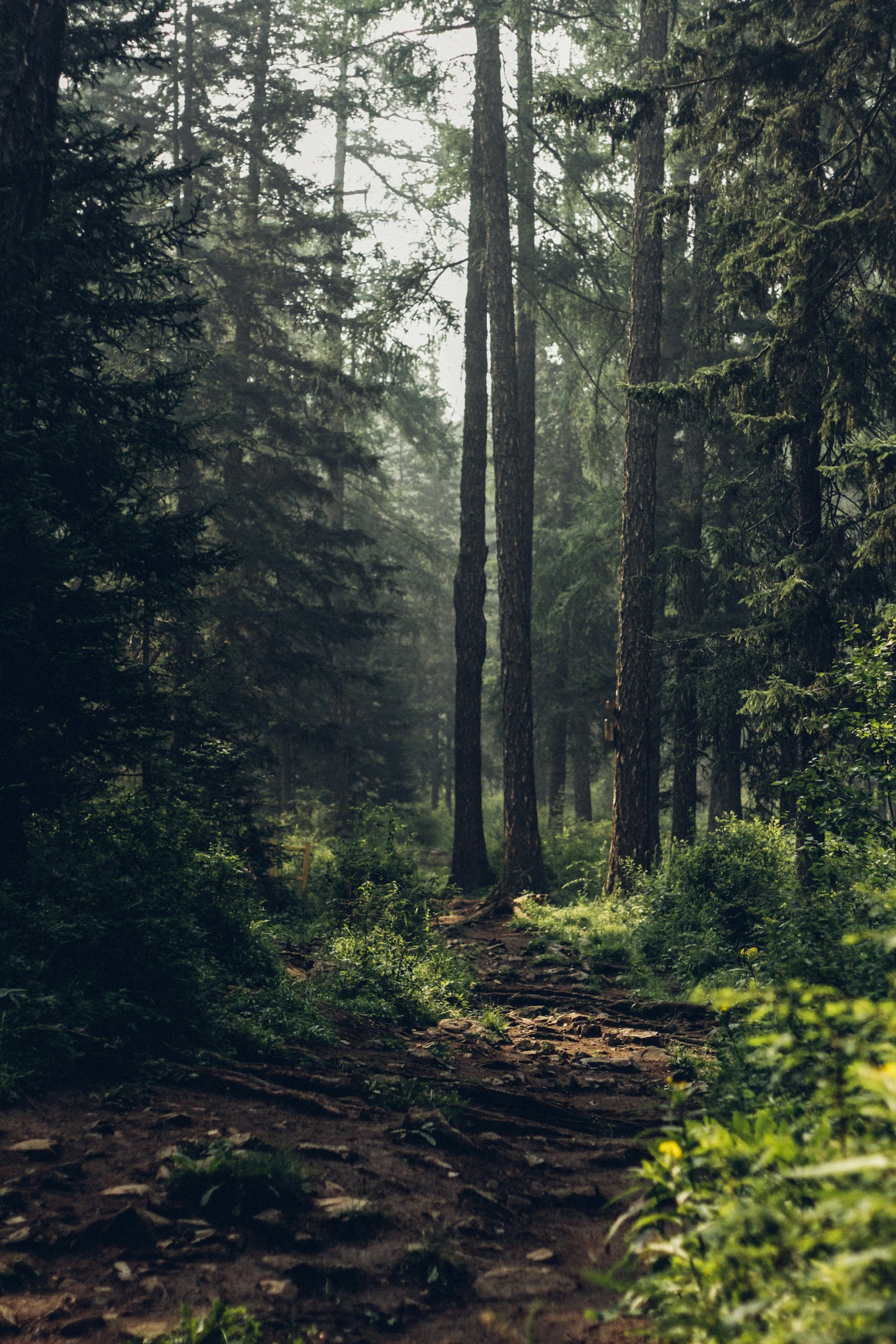
Ferns Ancient plant forms thriving in filtered light. -

Nurse Log Decomposition feeds the next generation. -

Autumn Canopy The canopy transforms with the seasons. -

Morning Mist Mist softens the boundaries between trees.
What You’ve Learned in Forest
If you can create a Forest essay, you have mastered:
- All Seedling components — Images (figure + figure-wrap), headings, footnotes, pull quotes, block quotes, alert boxes
- All Sapling components — Scrollyboxes (bg.html), carousels, jumbotrons, pacing control
- Advanced Forest features:
- Juxtapose interactive comparisons with custom starting position
- Sticky backgrounds (bg-sticky)
- Background switching with multiple images (bg-multi-long + bg-switch)
- Side-scroll sections (bg-ss + bg-ss-image + bg-ss-close)
- Center-aligned pull quotes and left-aligned blockquotes
- Header eyebrow, divider, and subtitle fields
- Auto-scroll for demos
Between all the essays, you’ve seen the full Xanthan toolkit. Not every essay needs every feature, but you now have complete control over how to tell visual stories on the web.
Feeling overwhelmed? Start with Seedling or Sapling so there is just less stuff to deal with. You can always copy and paste Xanthan components into your page. There’s nothing special about this page–it just uses more components!
Ready to Create Your Own?
New to Xanthan? Start with the Getting Started guide to create your own site first. Once you have a working site, come back here to build your ScrollStory.